Topic 1 of 5
#How each page is organised
- Primary navigation moves between major BrightBridge workspaces.
- Page headings describe the current workspace and often include its main action.
- Filters narrow what is displayed; they do not always clear an existing selection.
- Tables and cards open detail views where player-specific actions live.
- Status messages near an action are more important than a temporary loading spinner.
Topic 2 of 5
#Workspace map
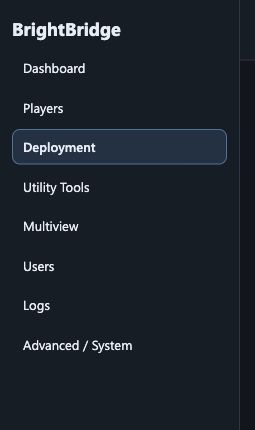
| Area | Typical operator task |
|---|---|
| Dashboard | Quick platform, player and recent-work overview |
| Players | Find a player, inspect it or use a remote tool |
| Deployment | Upload content, preview a release and apply it |
| Utility Tools | Review connection test history |
| Multiview | Build a shared monitoring grid |
| Users | Manage your own sign-in security where permitted |
| Logs | Review operator-visible events and build an escalation timeline |
Topic 3 of 5
#Filters and selection
Filtering changes what you can see. Selection identifies what an action will affect. Treat them as separate state.
Topic 4 of 5
#Read status language consistently
| Label | Operator meaning |
|---|---|
| Ready | The item can be used for the next step |
| Running | Work is still in progress; avoid starting a duplicate |
| Success | BrightBridge completed its part; verify the player outcome |
| Warning | Continue only after understanding the stated condition |
| Failed | The action did not complete; capture the message before retrying |
| Unknown | Not enough recent information is available |
Topic 5 of 5
#Smaller screens and keyboard use
- On narrow screens, open the navigation menu and close it after choosing a page.
- Use the global search to jump to a guide instead of expanding every group.
- Wide tables may scroll horizontally; confirm the rightmost action and status columns.
- For high-impact operations, use a screen large enough to review player names and warning details together.